Retrieving ‘Job Form’ Data
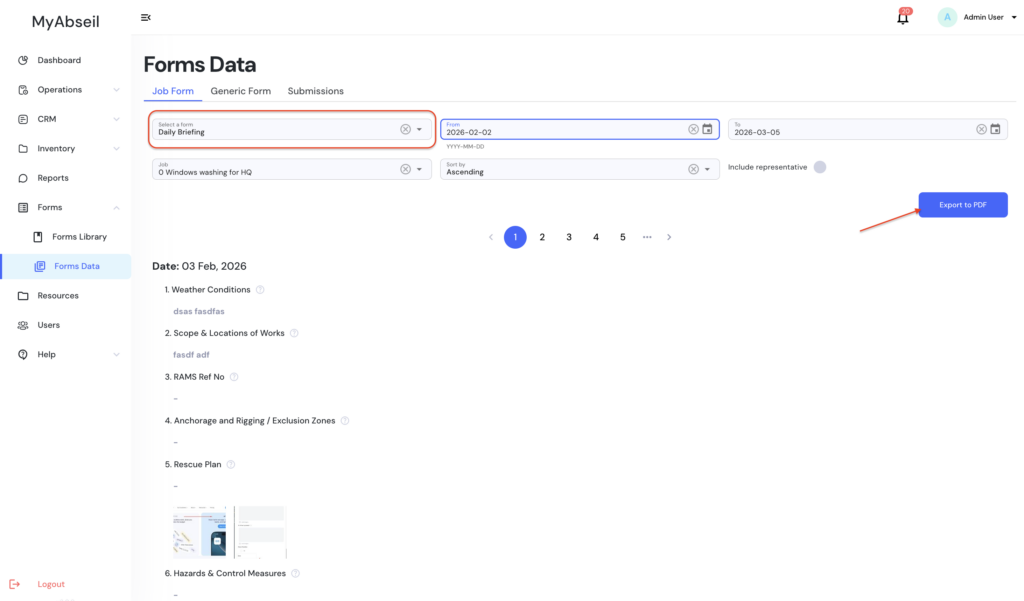
To view submissions related to a job:
- Open Forms → Forms Data.
- Click the Job Form tab.
- Select the form you want to view using the Select a form dropdown.
Retrieving ‘Generic Form’ Data
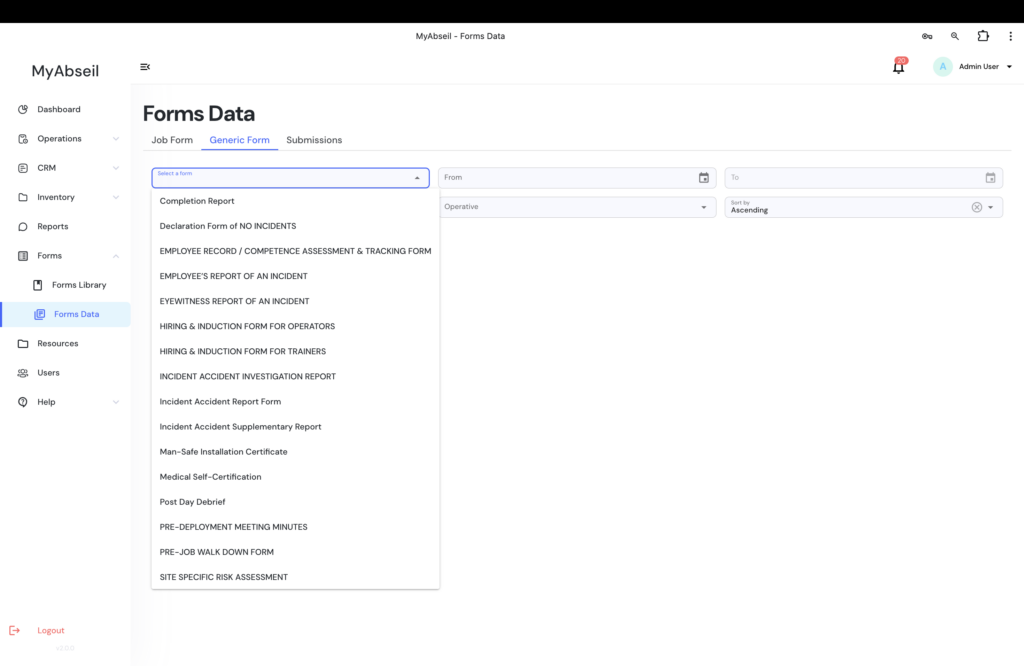
To retrieve generic forms:
- Go to Forms → Forms Data.
- Select the Generic Form tab.
- Use the Select a form dropdown.
Available forms may include examples such as:
- Completion Report
- Incident Accident Report
- Survey Reports
- Apply optional filters:
- From / To date
- Operative
- Sort order
The system will display the matching submissions.
Using the ‘Submissions’ Tab
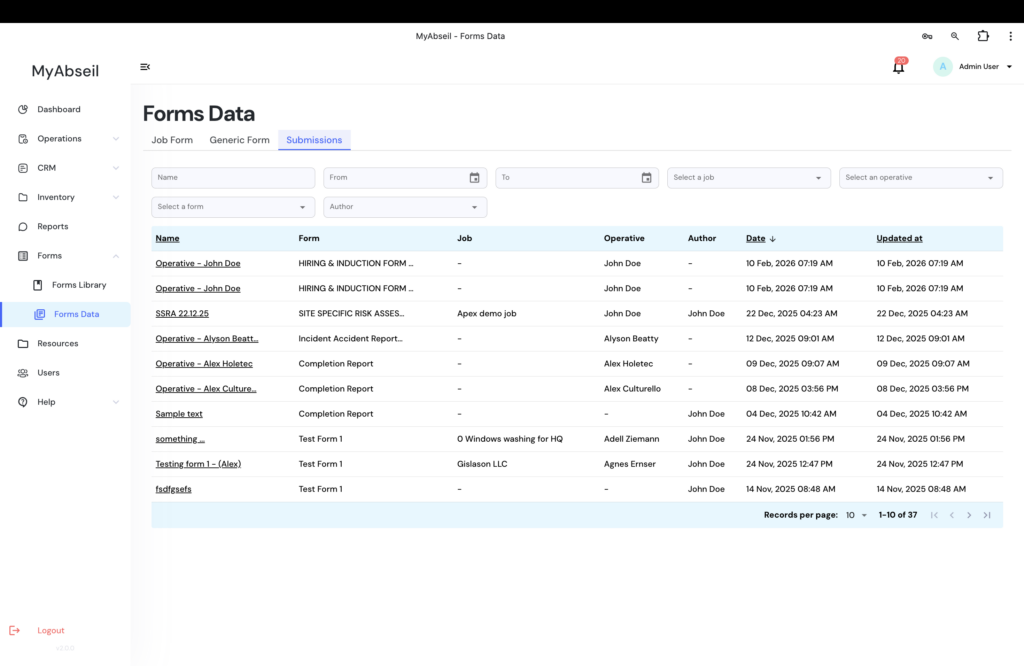
The Submissions tab provides a centralised table of all submitted Generic Forms. Not the Job Pack Forms
Use available filters in the Submissions tab, to get to the required form
Admins can filter submissions by:
- Name – Submission name or record title
- From / To – Date range
- Select a form – Filter by form type
- Select a job – Filter by job
- Select an operative – Filter by technician whom the form is allocated to
- Author – Person who submitted the form