
Understanding Question Types in MyAbseil Forms
MyAbseil allows administrators to build custom digital forms by adding different types of questions. Each question type serves a different purpose depending on the type of information you want technicians to provide.
This guide explains all available question types, how to add them to a form, how to assign them to sections (headers), and how to reorder questions using drag & drop.
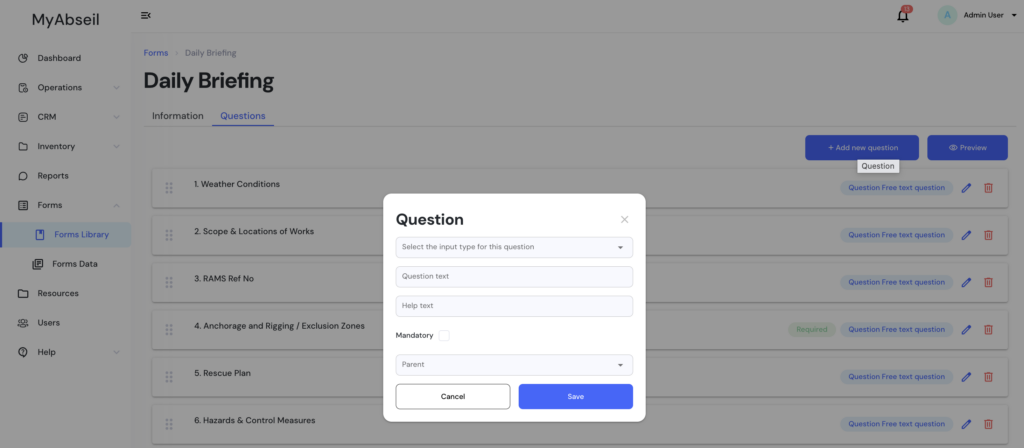
Question Configuration Fields
When creating a new question, the following fields are available:
- Input Type
Select the type of response the user will provide. - Question Text
The question or instruction displayed to the technician. - Help Text
Optional supporting guidance to help the user understand what information is required. - Mandatory
When enabled, the question must be completed before the form can be submitted. - Parent
Allows you to assign the question to a specific Header (section). - Save
Adds the question to the form. - Cancel
Closes the editor without saving.
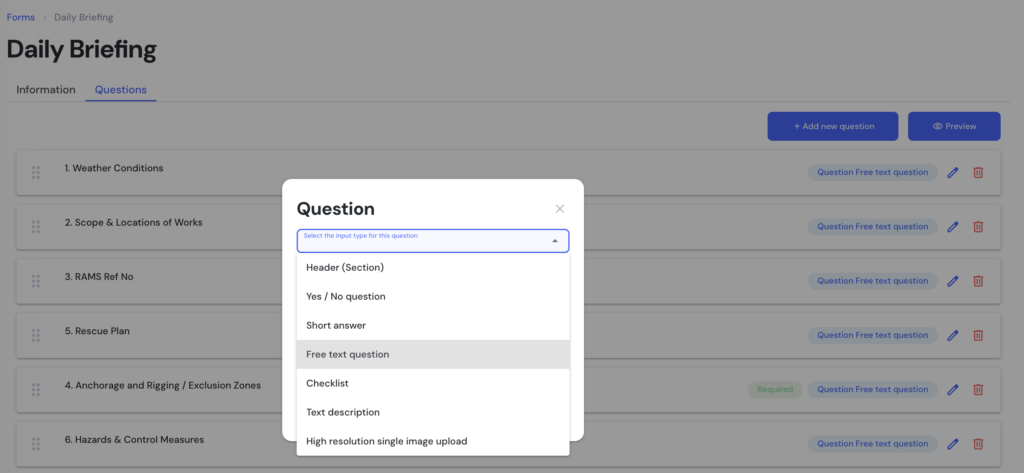
Available Question Types
Header (Section)
Used to create sections within the form to organise questions.
Purpose
- Groups related questions together
- Improves readability for technicians completing the form
- Acts as a parent container for other questions
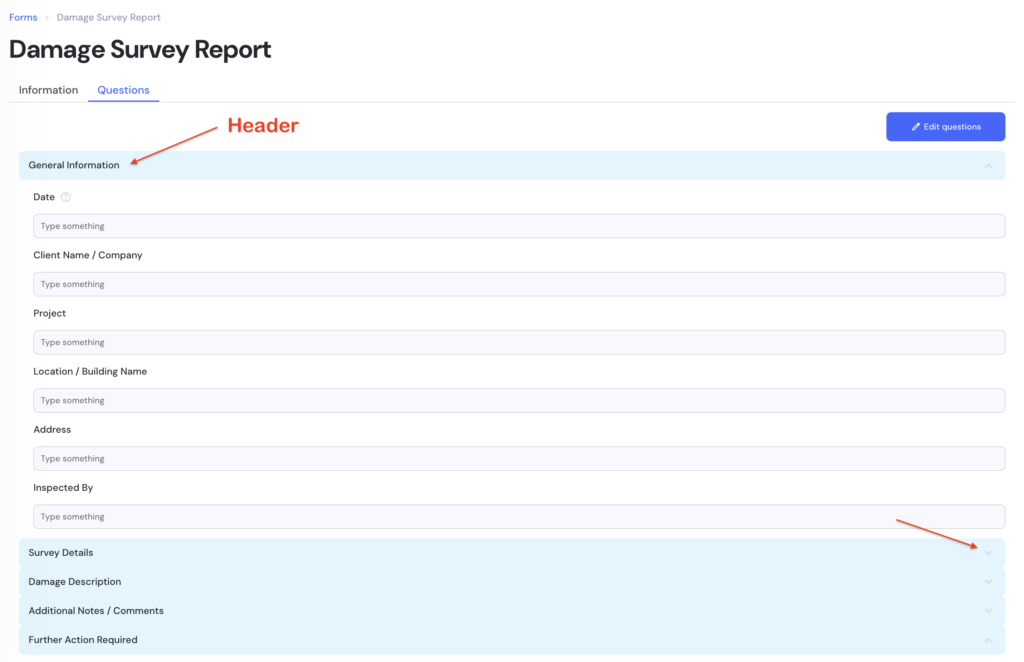
Key Notes
- Does not require user input
- Used only for structure and organisation
Yes / No Question
A simple selection question where the user chooses one option.
Available responses
- Yes
- No
- Not Applicable (N/A)
Purpose
- Quick confirmation checks
- Compliance or safety confirmations
Short Answer
Allows the user to enter a short text response.
Purpose
- Small pieces of information
- References or identifiers
Examples
- RAMS reference number
- Permit number
- Equipment ID
Input type
- Short text field only
- No images
Free Text Question
Allows the user to provide detailed written responses.
Purpose
- Descriptions
- Observations
- Reports or notes
Input capabilities
- Long text input
- Photo attachments
This is commonly used for documenting conditions, issues, or detailed briefings.
Checklist
Allows users to select multiple items from a predefined list.
Purpose
- Confirming multiple checks
- Selecting equipment or safety controls
Users can select multiple options.
Text Description
This field displays information only.
Purpose
- Provide instructions or safety information
- Display content that the user cannot edit
Key characteristics
- Read-only
- No user input required
High Resolution Image Upload
Allows the user to upload a high-resolution photo.
Purpose
- Visual documentation
- Evidence of site conditions
- Equipment inspection photos
Input type
- Image upload only
- No text input