
A practical guide to uploading, revising and evidencing job safety documents in MyAbseil
MyAbseil now allows you to keep multiple Work Safety Documents against each job. Use this feature to maintain a clear, current and traceable record of the safety information that applies to the work.
The most important rule is simple: upload each new document separately, but use Replace when the same document is issued at a new revision. This preserves version history and keeps the applicable revision active.
Use the correct action
- Upload PDF. Use this only when a safety document is being added to the job for the first time.
- Replace Document. Use this when an existing document is issued at a new revision, so its history remains intact.
The following pages show how to review the record, upload, replace and report correctly.
Review the document record
Check before work starts
- Correct job and complete set. Confirm that all required safety documents are attached to the job where the work will be performed.
- Applicable revision. The revision in force should be shown as Active; superseded revisions should remain in the history as Inactive.
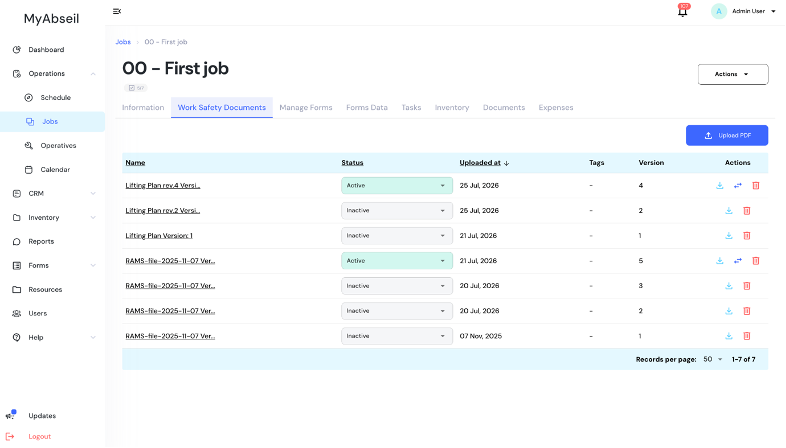
Figure 1 The Work Safety Documents tab shows the documents, status, upload date and version held against the job.
Upload a new safety document
Use Upload PDF when a safety document is being added to the job for the first time. Add separate files for separate documents so that each item has its own identity and revision history.
1. Open the required job. Select the job that the document applies to.
2. Open Work Safety Documents. Check the existing list before adding anything, to avoid creating a duplicate document record.
3. Select Upload PDF. The Add Safety Document window will open.
4. Complete the document details. Enter a recognisable document name, the revision number and the correct safety-document category.
5. Attach the PDF and save. Confirm that the document appears against the correct job with the expected status and version.
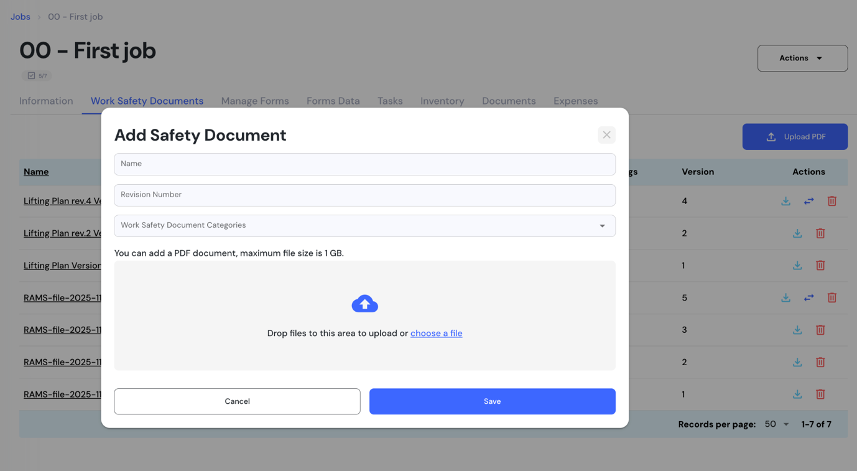
Figure 2 Complete the name, revision number and category before attaching the PDF and saving it to the job.
Replace a document when its revision changes
When an existing safety document is revised, do not create a second unrelated record with Upload PDF. Find the current document and use the Replace Document action. The replacement becomes the applicable version and the earlier versions remain available in the history.
1. Locate the document. Confirm that its name and existing revision match the document you intend to update.
2. Select Replace Document. Use the replace icon, enter the new revision details and attach the revised PDF.
3. Verify the result. Check that the new revision is Active and that the earlier revision remains visible as Inactive history.
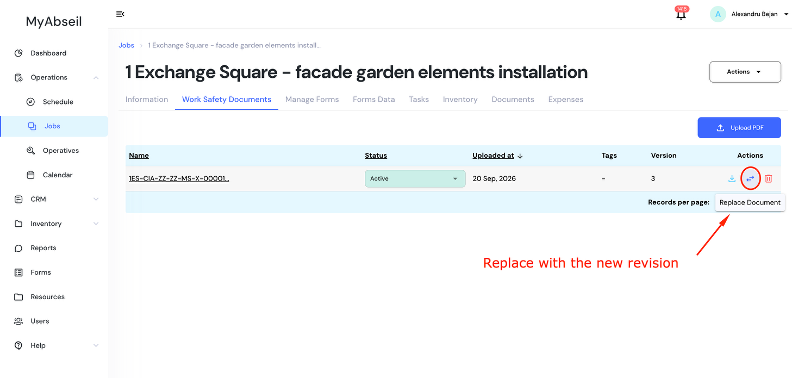
Figure 3 Use Replace Document for a new revision of an existing WSD. This preserves the document’s history.
Avoid the most common errors
- Do not upload a revision as a brand-new document. That separates it from the earlier version and weakens the revision trail.
- Check identity and status. Confirm the title, stated revision, category and job, then verify that the correct version is Active.
Your technicians are acknowledging the Work Safety Documents every day
Operatives on site acknowledge the latest active revision for their job, every day, when they sign.
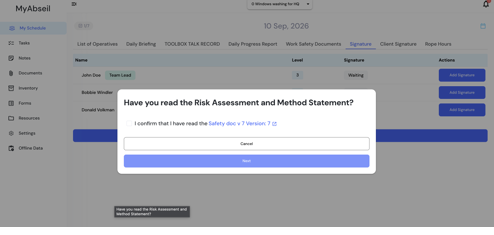
Figure 4. All operatives on site must acknowledge the WSDs before they can proceed to the signature.
Use reporting to evidence compliance
The Reports area includes Work Safety Documents reporting. These reports provide an audit-friendly record of operatives, attendance details, and signatures for the work safety documents associated with each day worked on site.
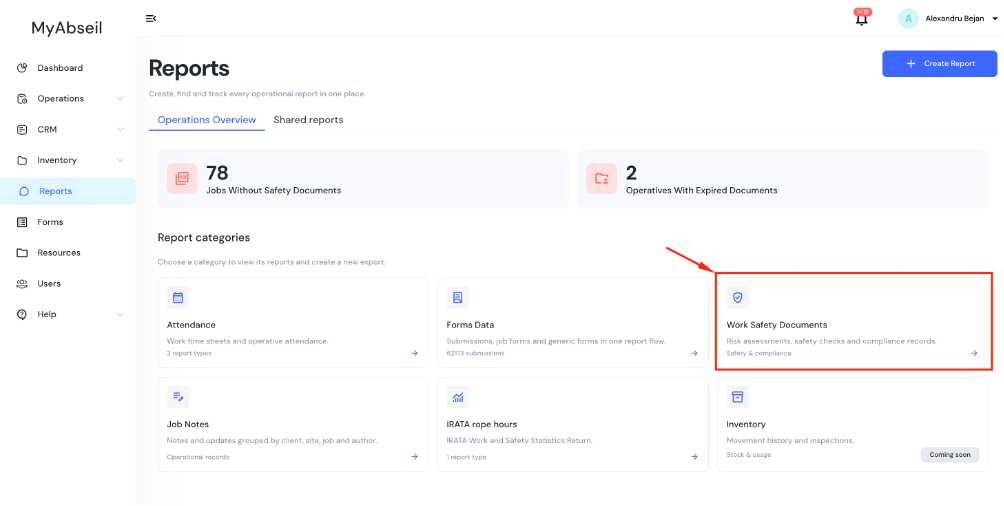
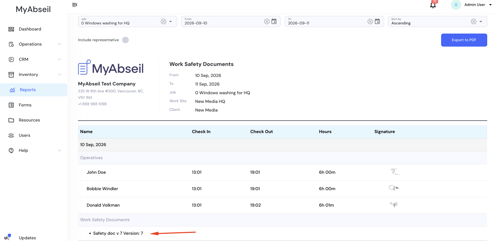
Figure 5 Open Reports and select Work Safety Documents to review safety and compliance information across jobs.
Recommended routine
- Before work starts. Confirm the required documents are present against the correct job and that the applicable revisions are Active.
- When a document changes. Use Replace Document, verify the new revision, and use reports when evidence is needed for audit or customer review.